Table of Contents
Installasi Incus
Import Repository Key
Cek fingerprint key dulu, harus sama dengan 4EFC 5906 96CB 15B8 7C73 A3AD 82CC 8797 C838 DCFD
curl -fsSL https://pkgs.zabbly.com/key.asc | gpg --show-keys --fingerprint
mkdir -p /etc/apt/keyrings/
curl -fsSL https://pkgs.zabbly.com/key.asc -o /etc/apt/keyrings/zabbly.asc
Tambah Repository
Pilih channel stable (bisa juga lts-6.0, lts-7.0, atau daily)
sh -c 'cat <<REPOEOF > /etc/apt/sources.list.d/zabbly-incus-stable.sources
Enabled: yes
Types: deb
URIs: https://pkgs.zabbly.com/incus/stable
Suites: $(. /etc/os-release && echo ${VERSION_CODENAME})
Components: main
Architectures: $(dpkg --print-architecture)
Signed-By: /etc/apt/keyrings/zabbly.asc

REPOEOF'
Install Incus
apt-get update
apt-get install incus
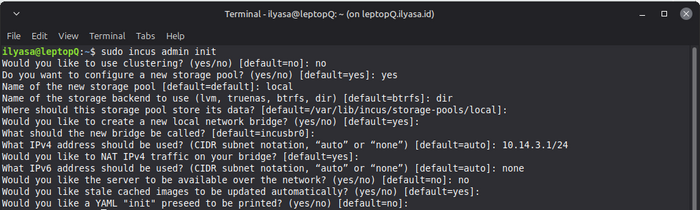
Inisialisasi Incus
incus admin init
My Prefer Configuration:
Install Incus UI
apt-get install incus-ui-canonical
Konfigurasi Incus UI
Cari interface yang ingin diexpose atau kalau tidak peduli dengan security anda bisa expose dengan any address
# Spesifik address
incus config set core.https_address=10.14.3.1:8443
# Any Address (Not Recomended)
incus config set core.https_address=0.0.0.0:8443
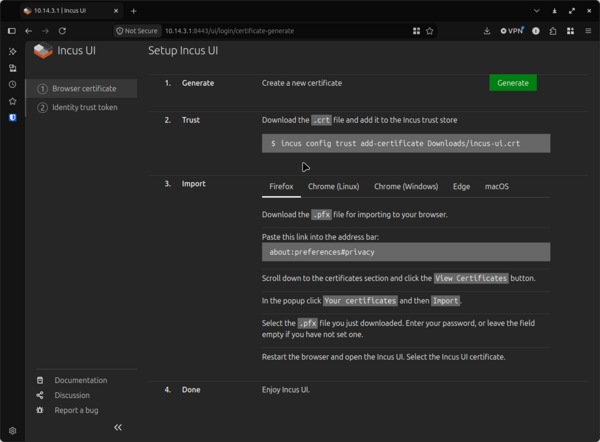
Sekarang Incus UI dapat diakses di browser dengan address dari server (contoh, https://10.14.3.1:8443). Ikuti instruksi untuk menambah ca certificate sesuai browser yang anda gunakan.