This is an old revision of the document!
Installasi LXD
Install snapd
Secara default ubuntu sudah terinstall snapd dan jia belum install snapd sesuai dokumentasi cononicalhttps://snapcraft.io/docs/installing-snapd
sudo apt install snapd
Install LXD
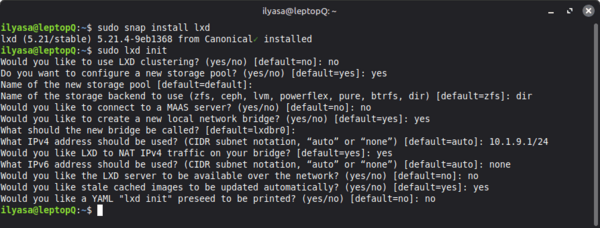
sudo snap install lxd
sudo lxd init
- My Prefer Configuration its all up to you
Would you like to use LXD clustering? (yes/no) [default=no]: no
Do you want to configure a new storage pool? (yes/no) [default=yes]: yes
Name of the new storage pool [default=default]:
Name of the storage backend to use (zfs, ceph, lvm, powerflex, pure, btrfs, dir) [default=zfs]: dir
Would you like to connect to a MAAS server? (yes/no) [default=no]: no
Would you like to create a new local network bridge? (yes/no) [default=yes]: yes
What should the new bridge be called? [default=lxdbr0]:
What IPv4 address should be used? (CIDR subnet notation, “auto” or “none”) [default=auto]: 10.1.9.1/24
Would you like LXD to NAT IPv4 traffic on your bridge? [default=yes]: yes
What IPv6 address should be used? (CIDR subnet notation, “auto” or “none”) [default=auto]: none
Would you like the LXD server to be available over the network? (yes/no) [default=no]: no
Would you like stale cached images to be updated automatically? (yes/no) [default=yes]: yes
Would you like a YAML "lxd init" preseed to be printed? (yes/no) [default=no]: no
Konfigurasi LXD GUI
Cari interface yang ingin diexpose atau kalau tidak peduli dengan secutiry anda bisa expose dengan any address

# Spesifik address
sudo lxc config set core.https_address 10.1.9.1:8443
# Any Address (Not Recomended)
sudo lxc config set core.https_address :8443
Sekarang anda dapat mengakses LXD UI di browser dengan memasukan address dari server (contoh, https://127.0.0.1:8443). Ikutil intruksi untuk menambah ca certificate sesuai browser yang anda gunakan.